In Part 1 we built the platform: Ollama running qwen3.5:9b, Open WebUI as the chat interface, and Caddy in front of it on a VPS. The team could log in and chat, but the model only knew what it was trained on. It had never seen the organisation’s contracts, policies or price lists, and those were the questions people actually wanted to ask.
In this post we add a knowledge base, so staff can ask “What is our refund window?” and get an answer taken from the company’s own documents, with a reference to the file it came from. Everything still runs on the same server and no document leaves it.
This is the second post in a four-part series:
- Part 1 - The platform: hardware sizing, Ollama and Open WebUI on a Mac and on a VPS, HTTPS with Caddy.
- Part 2 (this post) - A knowledge base: letting the model answer from company documents using Docling.
- Part 3 - Locking it down: the security steps that keep the server out of the exposed-Ollama statistics.
- Part 4 - Automation: connecting n8n to the local model for real workflows.
If you are new to vector embeddings, my earlier posts on Milvus Part 1 and Part 2 explain what embeddings are and how similarity search works. Here we let Open WebUI do that part for us.
How the knowledge base works

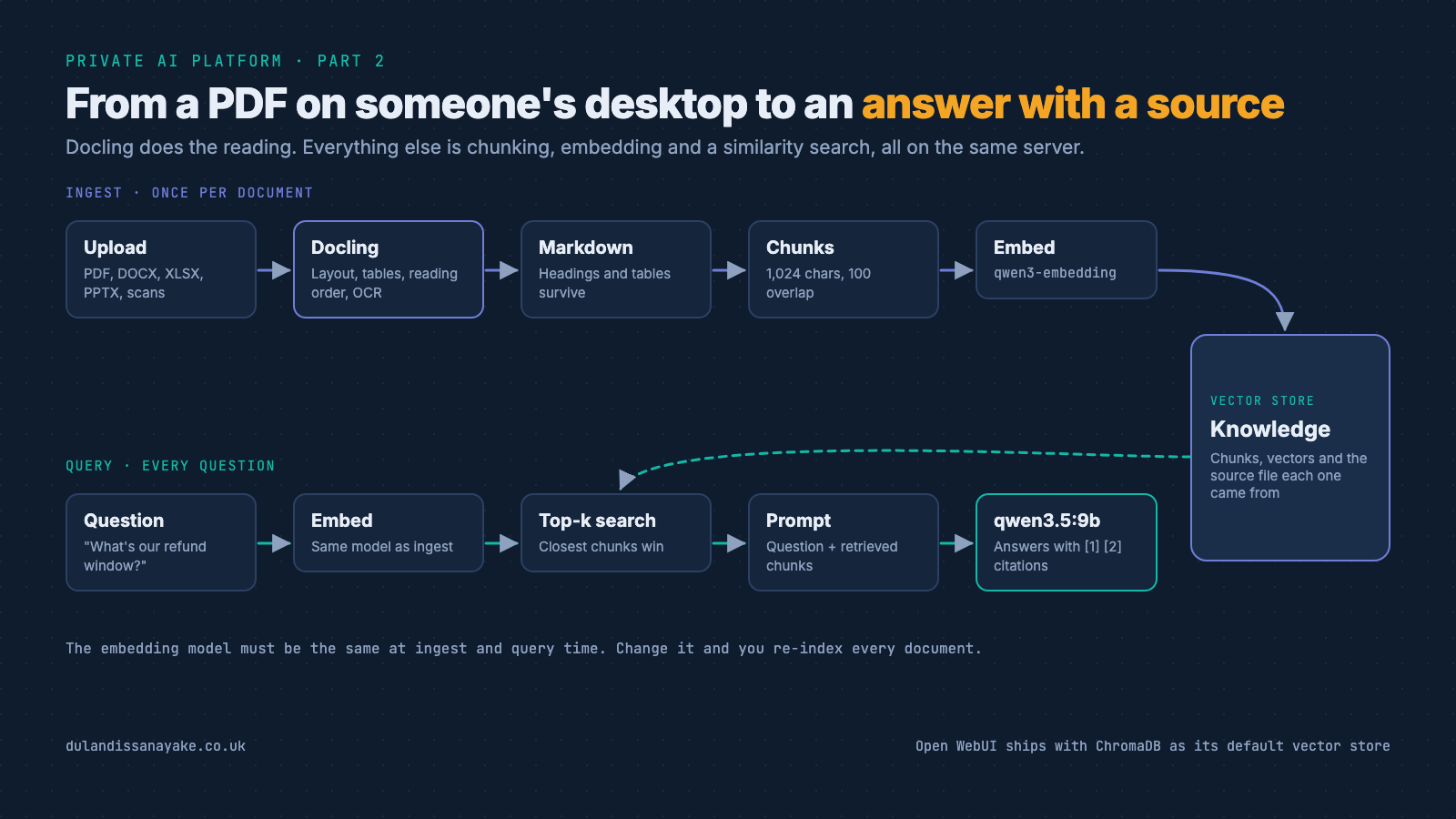
This is Retrieval-Augmented Generation (RAG). It has two halves:
- Ingest (once per document) - A file is uploaded, converted to text, split into chunks, and each chunk is turned into a vector by an embedding model. The vectors go into a vector store with a reference to the source file.
- Query (every question) - The question is embedded with the same model, the closest chunks are found, and those chunks are added to the prompt. The model answers from them and Open WebUI shows citations like
[1][2]that link back to the source.
Open WebUI already does all of this. It ships with ChromaDB as its default vector store, so there was no separate database to run. What we had to decide was two things: how documents are converted to text, and which model creates the embeddings.
Note : The embedding model must be the same at ingest and query time. If you change it later, every document has to be re-indexed, so it is worth choosing it before people start uploading.
Step 1: Why we needed Docling
The first version used Open WebUI’s built-in text extraction, and it worked well on simple documents. Then we uploaded the invoice summaries and a few contracts, and the answers got noticeably worse.
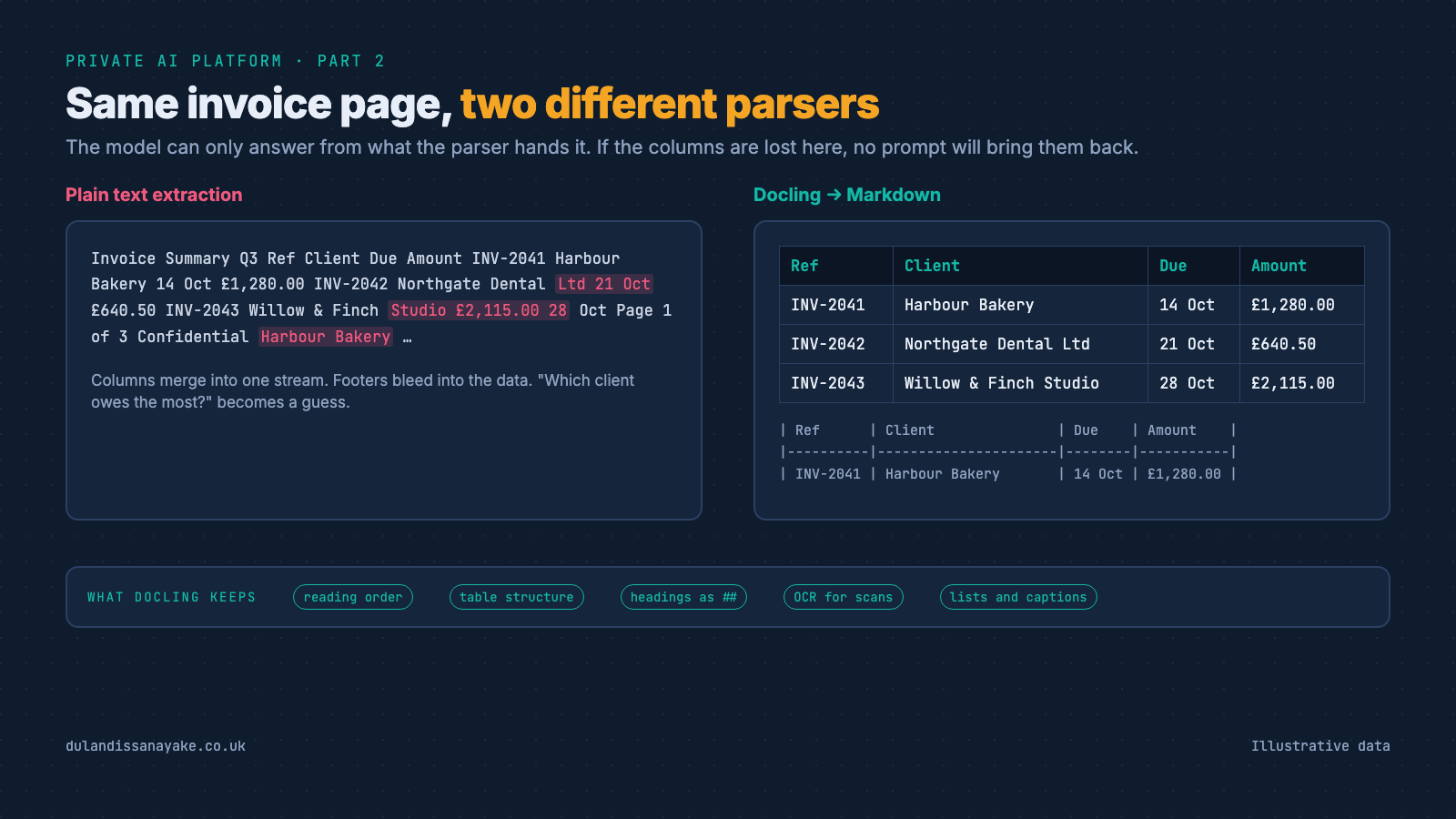
The problem was the conversion, not the model. Plain text extraction reads a PDF as a stream of characters, so a table becomes one long line where the columns run into each other, and page headers and footers end up in the middle of the data. If someone asks “Which client owes the most?” the model is looking at a jumbled line of names and numbers and has to guess. The model can only answer from what the parser gives it.
Docling is an open-source document converter from IBM Research. It analyses the page layout and outputs Markdown that keeps:
- Reading order - Multi-column pages come out in the order a person would read them.
- Tables - Rows and columns become a Markdown table, so the structure survives chunking.
- Headings - Section titles become
##headings, which gives each chunk useful context.- OCR - Scanned pages are run through OCR instead of coming back empty.
- Other formats - DOCX, XLSX, PPTX and HTML go through the same pipeline as PDFs.
Docling also has an API server, docling-serve, and Open WebUI has built-in support for it as a content extraction engine. So we only had to add one container.
Step 2: Add docling-serve to the stack
We added Docling to the same ~/ai-stack/docker-compose.yml from Part 1. There is a CPU-only image, which is all we need on this server:
| |
Some notes on this service:
- Port binding - Same rule as Part 1. Docling has no authentication of its own, so the port is bound to
127.0.0.1and Open WebUI reaches it over the Compose network athttp://docling:5001.- UVICORN_WORKERS=1 - The docling-serve docs recommend a single worker to avoid task routing issues. One worker was enough for a small team uploading documents a few at a time.
- Image tag -
:latestto get started, like the other services. In Part 3 we pin all of them to exact versions.
Start it and check it responds:
| |
Then convert a real document from the host to see what Docling produces before wiring it into Open WebUI:
| |
This is the most useful check in the whole setup. If the tables look right here, they will look right to the model. If they don’t, no amount of prompt tuning will fix it later.
Note : The first conversion is slow because Docling loads its layout and OCR models. After that it is much quicker. Keep an eye on memory with docker stats the first time you convert a large scanned PDF.
Step 3: Pull an embedding model
For embeddings we used qwen3-embedding:0.6b. It is small (600M parameters), runs comfortably on a CPU next to qwen3.5:9b, produces 1,024-dimension vectors and handles multiple languages. Ollama serves it through the same API as the chat model:
| |
On our 32 GB server both models stay loaded together (we set OLLAMA_KEEP_ALIVE=24h in Part 1), with plenty of room left for Docling.
Step 4: Connect Open WebUI to Docling and the embedding model
All of this is done in the Open WebUI admin panel, under Admin Panel → Settings → Documents. We used the admin panel rather than environment variables, because Open WebUI stores these settings in its database after the first start (I explain this properly in Part 3).
Content extraction
- Content Extraction Engine -
Docling- Docling Server URL -
http://docling:5001
Embedding
- Embedding Model Engine -
Ollama- Ollama URL -
http://ollama:11434- Embedding Model -
qwen3-embedding:0.6b
Chunking and retrieval
- Chunk Size -
1024characters- Chunk Overlap -
100characters- Top K -
5
These numbers are where we ended up after testing with real questions, not a rule. Chunks of about 1,000 characters were large enough to hold a whole table section or policy clause, and the 100-character overlap stopped sentences being cut in half at the boundaries. Five chunks gave the model enough context without filling up the 8,192-token context window we set in Part 1.
Save the settings, then upload a test document in a chat and ask a question about it. In the Docling container logs you should see the conversion request arrive.
Note : If you change the embedding model or the chunk settings after documents are uploaded, the existing documents have to be re-indexed (the reset and re-index options are at the bottom of the same settings page). Old chunks embedded with the previous settings won’t match the new ones.
Step 5: Create knowledge bases for the team
Uploading a file in a chat is fine for one-off questions. For documents the whole team uses, we created knowledge bases under Workspace → Knowledge:
- Policies - HR handbook, leave policy, expenses policy.
- Contracts - Supplier and client contracts.
- Finance - Price lists and invoice summaries.
Each knowledge base has its own access setting. We made Policies available to everyone and restricted Contracts and Finance to user groups (Admin Panel → Users → Groups), so a question from someone outside those groups never retrieves those chunks. Part 3 covers the group setup with the rest of the access controls.
Then we created a model preset for each one under Workspace → Models. It is just qwen3.5:9b with a knowledge base attached and a short system prompt:
| |
The line “say you could not find it” made the biggest difference. Without it, the model would fill in gaps with general knowledge that sounded right but wasn’t the organisation’s policy. Staff pick “Policies Assistant” from the model list and ask their question, and the answer comes back with citations they can click to open the source.
Testing it with real questions
Before giving it to the team, we wrote down around 20 questions that staff actually ask, with the correct answer and the document it comes from. Things like:
- “How many days of annual leave do new starters get?”
- “What is the notice period in the Harbour Bakery contract?”
- “Which invoices from Q3 are still overdue?”
We ran them every time we changed a setting. This is much better than judging by feel, because a change that fixes one question often breaks another. The table questions were the ones that improved most after switching to Docling.
Common issues
These are the problems we ran into while setting this up:
- Answers ignore the documents - Check the chat is using the model preset with the knowledge base attached, not plain
qwen3.5:9b. Open WebUI shows the retrieved sources under the answer, so if there are no citations, nothing was retrieved.- Tables come back garbled - Run the
curlconversion from Step 2 on that file. If Docling’s Markdown is wrong, the source PDF is usually a scan with low resolution, and a better copy fixes it.- Upload fails or times out on large files - Large scanned PDFs can take a long time on a CPU. Check the Docling logs, and split very large documents before uploading.
- Answers got worse after changing settings - The embedding model or chunk size was changed without re-indexing. Reset the vector storage and upload again.
- Answers are cut off or miss context - Top K multiplied by the chunk size is larger than the context window allows. Lower Top K or raise
OLLAMA_CONTEXT_LENGTHand watch memory.
What’s next
The team now has an assistant that answers from the organisation’s own documents, and nothing leaves the server. But the server now holds contracts, client records and HR policies, which makes it a much more interesting target. In Part 3 I go through how we locked it down, from the firewall and SSH to user access, backups and the update routine.
Sources : Docling, docling-serve, Open WebUI Docling integration, Open WebUI RAG, Ollama qwen3-embedding, Ollama embeddings API.